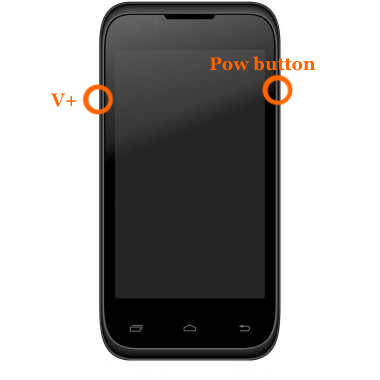
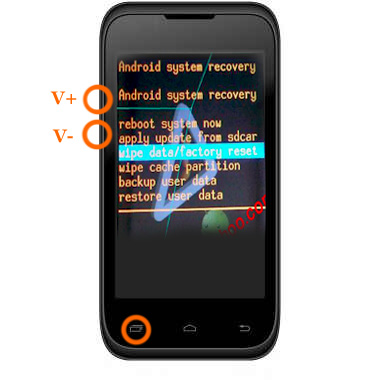
Windows Phone 8 is gaining a marvelous reputation as a very stable operating system for mobile phones. There are situation where it is still necessary to perform a Reset of the phone.
Sometimes just because the phone stop responding (usually due to some application), or because the problem is more serious and you may have a corrupt software on the terminal or you just want to erase every-data from the phone.
So, For these steps we usually prefer Soft Reset.
Sometimes just because the phone stop responding (usually due to some application), or because the problem is more serious and you may have a corrupt software on the terminal or you just want to erase every-data from the phone.
So, For these steps we usually prefer Soft Reset.
Soft reset:
In this case when the phone is locked and does not respond to any action. Of course, the first thing is to make sure so just press the power button for several seconds to see if the phone performs an orderly shutdown. If the phone still does not respond, for phones with removable battery , just follow these steps (which I think we all have know already):
- Open the terminal (removing the box as necessary)
- Remove the battery to let the phone without power
- Wait a few seconds for the phone fully discharged
- Replace the battery and the corresponding case
- Boot the phone normally
This is fine for phones with removable battery. But as we know, Nokia is making rug phones and they also become famous thanks to its polycarbonate body (for example, Nokia Lumia 920) and that is not easy to remove the battery. So for these phones, how do I do?
Dont worry we have a solution for this as well.
Dont worry we have a solution for this as well.
Nokia explains that there is a way and that is to simultaneously press the button on/off with the volume down button for about 10 seconds.
You will notice that the phone vibrates, and thats when we can release the buttons. The result is that the phone will reboot and will start as if it had been turned off.With this method, the information we have on the phone should not alerted.
You will notice that the phone vibrates, and thats when we can release the buttons. The result is that the phone will reboot and will start as if it had been turned off.With this method, the information we have on the phone should not alerted.
Hard reset:
With the use of Hard Reset the phone back to its initial condition as when out of the box and make the boot the first time. That is why it is also known as the initial configuration reset or reset to factory settings.
During the process, reset of all data that the terminal occurs. Therefore, we can apply both when we have a problem with the phone software related suspect, or where you want to sell your phone to someone so you definitely want to erase your all data from it, Hard Reset will provide you a method to remove the information, and start settings to its new staff from scratch.
During the process, reset of all data that the terminal occurs. Therefore, we can apply both when we have a problem with the phone software related suspect, or where you want to sell your phone to someone so you definitely want to erase your all data from it, Hard Reset will provide you a method to remove the information, and start settings to its new staff from scratch.
RECOMMENDATION : The duration ofhard resetis tied to the amount of information that you have on your phone. Therefore youve better to delete all photos, music and videos and even installed programs yourselves to reduce the time-period for hard reset itself.
The first method is the one that provides the Windows Phone itself As simple as going to Settings, then move to phone information, and clicking reset your phone.
The second method should apply to those terminals that are non-functional and therefore not allow to reach the indicated I or menu. So, we can only apply a method by combination of keys to try to solve the problem.
The method is different for Windows Phone 7.x than the Windows Phone 8.
The method is different for Windows Phone 7.x than the Windows Phone 8.
Hard reset Windows Phone 7.x:
This method easily applies to Nokia Lumia 900, Lumia 800, Lumia 710 and Lumia 610. So, For this type of reset we will have to take two steps. We start with the phone off and keep pressed both buttons down volume, camera and finally the on/off button. After a few seconds the phone will vibrate.
At that moment the phone to vibrate, Youve to keep pressingthebuttons on/off and down the other two (volume down and camera) about five seconds. The phone should boot back to the factory settings.
As in this Picture you can easily understand:
Hard reset Windows Phone 8:
This method is also easily applies to the Nokia Lumia 920, Lumia 820, Lumia 720, Lumia 620, Lumia 520 models and obviously for Windows Phone 8 as well.
- Turned-off Your Phone for at least 20 seconds.
- The charger must be disconnected
- Press the volume down button while you connect the charger. Within seconds an exclamation will appear on the screen. (If your phone has enough battery, can turn on the terminal with the power button, instead of connecting the charger).
- In this state, press the following keys in order:
- Volume Up
- Volume Down
- Ignition
- Volume Down
- After the phone button sequence should start erasing and restoring to factory settings automatically.