Showing posts with label hard. Show all posts

Thursday, November 20, 2014

Samsung I9230 Galaxy Golden pattern lock hard reset


On dial screen enter this Samsung I9230 Galaxy Golden reset code: *2767*3855#

or

Use Samsung I9230 Galaxy Golden Backup and reset function(wzmobile.asia)
Go to Settings *> Backup and reset *> Factory data reset: Reset settings to the factory default values and delete all data.
Your device freezes or has fatal errors, pattern lock  (wzmobile.asia)
If your device freezes or hangs, you may need to close applications or reinsert the battery and
turn on the device to regain functionality. If your device is frozen and unresponsive, press and
hold the Power button for more than 8-10 seconds to reboot.(wzmobile.asia)
If this does not solve the problem, perform a factory data reset. On the Applications
screen, tap Settings -> Backup and reset -*> Factory data reset -> Reset device -> Erase everything. Before performing the factory data reset, remember to make back-up copies of all important data stored on the device.(wzmobile.asia)

Samsung I9230 Galaxy Golden pattern lock */soft reset / restart(wzmobile.asia)
Read More..

nokia lumia 710 hard reset code

1    On the Start screen, tap .
2    Tap Settings > about phone.
3    Tap reset your phone, and then tap yes.
Read More..

How to Perform a Soft Reset or Hard Reset Nokia Lumia in Any Terminal

When we talk about Nokia Lumia keep in mind that there are situations where our phone can have problems and we have no choice but to Reset it. The terminals in Windows Phone, like other mobile operating systems, supports different levels of reset. Starting from a Soft Reset, with the help of implications the phone returns to the initial condition. Then well talk about the Hard Reset if the problem is more critical.
hard
Windows Phone 8 is gaining a marvelous reputation as a very stable operating system for mobile phones. There are situation where it is still necessary to perform a Reset of the phone.

Sometimes just because the phone stop responding (usually due to some application), or because the problem is more serious and you may have a corrupt software on the terminal or you just want to erase every-data from the phone.

So, For these steps we usually prefer Soft Reset.

Soft reset:

In this case when the phone is locked and does not respond to any action. Of course, the first thing is to make sure so just press the power button for several seconds to see if the phone performs an orderly shutdown. If the phone still does not respond, for phones with removable battery , just follow these steps (which I think we all have know already):
  • Open the terminal (removing the box as necessary)
  • Remove the battery to let the phone without power
  • Wait a few seconds for the phone fully discharged
  • Replace the battery and the corresponding case
  • Boot the phone normally
This is fine for phones with removable battery. But as we know, Nokia is making rug phones and they also become famous thanks to its polycarbonate body (for example, Nokia Lumia 920) and that is not easy to remove the battery. So for these phones, how do I do?
Dont worry we have a solution for this as well.
Soft
Nokia explains that there is a way and that is to simultaneously press the button on/off with the volume down button for about 10 seconds.

You will notice that the phone vibrates, and thats when we can release the buttons. The result is that the phone will reboot and will start as if it had been turned off.With this method, the information we have on the phone should not alerted.

Hard reset:

With the use of Hard Reset the phone back to its initial condition as when out of the box and make the boot the first time. That is why it is also known as the initial configuration reset or reset to factory settings.

During the process, reset of all data that the terminal occurs. Therefore, we can apply both when we have a problem with the phone software related suspect, or where you want to sell your phone to someone so you definitely want to erase your all data from it, Hard Reset will provide you a method to remove the information, and start settings to its new staff from scratch.
RECOMMENDATION : The duration ofhard resetis tied to the amount of information that you have on your phone. Therefore youve better to delete all photos, music and videos and even installed programs yourselves to reduce the time-period for hard reset itself.
The first method is the one that provides the Windows Phone itself As simple as going to Settings, then move to phone information, and clicking reset your phone.
The second method should apply to those terminals that are non-functional and therefore not allow to reach the indicated I or menu. So, we can only apply a method by combination of keys to try to solve the problem.

The method is different for Windows Phone 7.x than the Windows Phone 8.

Hard reset Windows Phone 7.x:

This method easily applies to Nokia Lumia 900, Lumia 800, Lumia 710 and Lumia 610. So, For this type of reset we will have to take two steps. We start with the phone off and keep pressed both buttons down volume, camera and finally the on/off button. After a few seconds the phone will vibrate.
At that moment the phone to vibrate, Youve to keep pressingthebuttons on/off and down the other two (volume down and camera) about five seconds. The phone should boot back to the factory settings.

As in this Picture you can easily understand:
Hard

Hard reset Windows Phone 8:

This method is also easily applies to the Nokia Lumia 920, Lumia 820, Lumia 720, Lumia 620, Lumia 520 models and obviously for Windows Phone 8 as well.
  • Turned-off Your Phone for at least 20 seconds.
  • The charger must be disconnected
  • Press the volume down button while you connect the charger. Within seconds an exclamation will appear on the screen. (If your phone has enough battery, can turn on the terminal with the power button, instead of connecting the charger).
  • In this state, press the following keys in order:
  1. Volume Up
  2. Volume Down
  3. Ignition
  4. Volume Down
  • After the phone button sequence should start erasing and restoring to factory settings automatically.
Hardware
Read More..

Thursday, October 2, 2014

Samsung E1200 Pusha Hard Reset Instructions

This post about Samsung E1200 Pusha Hard Reset Instructions. Before discuss about it, we want to share about Samsung E1200 Pusha specs and features detail. The Samsung E1200 Pusha is GSM phone with frequency with 900 / 1800. It was released last year (2012). The phone measuring 108 x 45 x 13.5 mm with weight 65.1 g. It has 1.52 inches, TFT with 128 x 128 pixels resolution and support 65K colors. The Samsung E1200 Pusha powered by 156 MHz processor and Li-Ion 800 mAh battery capacity. How about tutorial for the Samsung E1200 Pusha hard reset? Read below:

Samsung E1200 Pusha Hard Reset Guide / instructions:
You must Enter *2767*3855#
Dont forget, all your data including contacts, messages etc. will be lost! Copy all your necessary data/Contacts/Messages etc.
To SIM or make backup to your PC before full reset! Take out SIM card before full reset

Read More..

Friday, September 26, 2014

BlackBerry Z10 Hard Reset Guide Instructions

 This posting about the BlackBerry Z10 Hard Reset Guide or tutorial. If you want to hard reset with your smartphone, follow this instructions:

The first, in your device options, click security options
The second, click general settings
Next step, press the menu key
Ok, further you must click Wipe Handheld
Then, to delete all third-party applications from your device, select the Include third-party applications check box
And then Click Continue
The last step, type blackberry and OK

You can also read about the BlackBerry Z10 Hard Reset  Instructions in manual or user guide. In addition in the manual also provide other important information for example about tutorial How do I reset my lost or forgotten BlackBerry ID password?

To reset your password on a computer, visit www.blackberry.com/blackberryid. Click Reset your password. Complete the instructions on the screen. To recover your password on your BlackBerry device, click Forgot Password. Answer your security question and complete the instructions on the screen.

When you follow the steps to reset your password on a computer, the password reset email can only be viewed on a computer and is not delivered to your BlackBerry device. If you follow the steps to reset your password on your device, the password reset email can be delivered to your BlackBerry device.

Read More..

Huawei Ascend P2 Hard Reset Instructions

The Huawei Ascend P2  measuring 136.2 x 66.7 x 8.4 mm. It has 4.7 inches, IPS LCD capacitive touchscreen, with 720 x 1280 pixels resolution and support 16M colors. Its powered by Quad-core 1.5 GHz processor with Huawei K3V2 chipset and runs on Android  4.1.2 (Jelly Bean) operating system. This smartphone equipped with 13 MP camera, available 1 GB of RAM also support for GSM, HSDPA, LTE network. If you owner of this smartphone, the following  information about the Huawei Ascend P2 Hard Reset Instructions:

The first, power off your Huawei Ascend P2 smartphone
Then, press and hold both the volume up and volume down keys
Next step press the power key
With the phone turned off, further press both Volume UP + SEND + POWER on Huawei Ascend P2
Next tutorial, from the recovery menu select wipe data/factory reset with volume button, Go to Yes - delete all user data
Ok, and then go to wipe cache partition > Yes wipe cache (All data will be lost!)

If your phone is responding to screen input, then open Settings from the Applications menu
Then you must Tap Backup & reset > Factory data reset
Click Reset phone and then Erase everything to format your phone

Read More..

Thursday, September 18, 2014

Samsung Galaxy Young S6310 hard reset


Samsung Galaxy Young S6310 data:

GSM frequencies :850 900 1800 1900
Standard UMTS :900 2100
Type :Touch
Dimensions (W x H x D) :109,40 x 58,60 x 12,50 mm
Weight :112,00 g
Main display :Color / TFT
                    256k colors
                    320 x 480 px (3.27") 176 ppi
Talk time (max.) :3G: 400 min. (6,7 h)
Stand-by (max.) :3G: 250 h. (10,4 days)
PDA mode work time :7 h. (0,3 days)
Standard battery :Li-Ion 1300 mAh
Internal memory :4 GB
RAM memory :768 MB
Memory cards : microSD, microSDHC, microSDXC (up to 64 GB)
Operating system :Android 4.1 Jelly Bean
Processor :Qualcomm MSM7227A
Processor clock :1,00 GHz

How to hard reset:

If you forgot your Lcd lock combination or password follow these steps.
Warning! All data will be lost!
1.Press together volume up + home button + power button
2.Release your fingers of the phone when Samsung logo appear
3.Choose with volume buttons "wipe data/factory reset" and select it with power button
4.Choose "yes" with volume buttons and select it with power button
5.Wait untiil format is complete
6.Select "reboot"

Here is video how to do:

Read More..

Tuesday, September 16, 2014

Samsung Galaxy Mini S5570 hard reset


Samsung Galaxy Mini S5570 data:

GSM frequencies :850 900 1800 1900
Standard UMTS :900 2100
Type :Touch
Dimensions (W x H x D) :110,40 x 60,60 x 12,10 mm
Weight :106,60 g
Main display :Color / TFT
                     256k colors
                     240 x 320 px (3.14") 127 ppi
Talk time (max.) :2G: 570 min. (9,5 h)
Stand-by (max.) :2G: 570 h. (23,8 days)
Standard battery :Li-Ion 1200 mAh
Internal memory :160 MB
RAM memory :384 MB
Memory cards : microSD, microSDHC (up to 32 GB)
Operating system :Android 2.2 Froyo
Processor :Qualcomm MSM7227
Processor clock :600 MHz
TouchLcd : yes
SAR (10g) :1,03 W/kg

How to hard reset:

If you forgot your Lcd lock combination or follow these steps.
Warning !All data will be lost!
1.Press together home button + power button
2.Release your fingers of the phone when Samsung logo appear
3.Choose with volume buutons "wipe data/factory reset" and select it with home button
5.Choose "yes" with volume buttons and select it with home button
6.Wait untiil format is complete
7.Select "reboot"

Here is video how to do:


Read More..

Saturday, September 6, 2014

How To Hard Reset Samsung Focus 2 I667

Hard Reset Samsung Focus 2 I667

Hard Reset Samsung Focus 2 I667

1. Press and hold the Power key to power off the phone.
2. Power up the device by pressing the Camera key + Volume down key and Power key .

When the device vibrates, release the Power key, but continue pressing the Camera and Volume down keys.
Once the device displays the Are you sure you want to format? screen, release the Camera and Volume down keys.

Note: If the download mode screen displays, go back to Step 1 and try again.
3. Press the Window key to Format the device. "Are you sure you want to format?" will appeare The message Formatting will erase all your personal content and restore the factory settings. Do you want to continue? displays.

4. Press the Window key again to confirm that you want to format the device.

Warning! Important! Do not remove the battery while formatting your phone.
Wait until the device switches on and displays the Home screen.
After formatting is complete, the Start-up Wizard screen displays.

or There is another way to reset, or format, your phone.

Formatting a Windows Phone 7
Normally, if you want to reset your phone to the factory default settings:
From the Home screen, touch → Settings > system > about > reset your phone.
Note: Formatting erases all user data stored on the device.
or

Use this method to hard reset your Samsung Focus 2 I667 :

Enter *2767*3855#.

Warning! All your data including contacts, messages etc. will be lost!

Copy all your necessary data/Contacts/Messages etc. to SIM or make backup to your PC before full reset! Take out SIM card before full reset.

Read More..

How to Hard Reset Sony Xperia Z Using Buttons

1. Switch off your device. If it is frozen, remove your battery and insert it again.

2. Keep the device turned off, then press and hold the Volume Up and Volume Down buttons.

3. Then press and hold the Power button (just keep on holding the volume buttons). Keeping those three button pressed, there should be a menu will appear on your phone.

4. Press the Volume Down button to navigate to the Recovery option. Press the Volume Up to select (if that doesnt work, use the Power button to select).

5. An Android logo will appear. Press and hold the Volume Down and Volume Up button together and the recovery menu should appear.

6. Use the Volume buttons to move to the Wipe data/Factory reset option and then press Power to select.

7. Use the Volume Down key to choose Yes and press the Power button again to select.
Read More..

Sunday, August 31, 2014

How to Backup and Factory Reset Hard Reset Motorola Moto G

Backup & restore

Your Google account data is backed up online. If you reset or replace your phone, just log in to your Google account to restore the contacts, events, and other details you synced with the account. To choose what syncs with the account, touch Apps > Settings > Google, touch your Google account, and check things to sync. Please note that text messages, call logs, and items stored on your phone will not be restored. To restore your Google Play™ Store apps, see “Take care of your apps”.

Resetting Motorola Moto G on Settings:
  • On your Home screen, touch Apps.
  • Go to Settings > Privacy.
  • Tap on Factory Data Reset.
  • Then tap Reset phone.
  • And Erase everything to confirm the reset.

Warning: All downloaded apps and user data on your phone will be deleted. Data on the cloud will not be deleted.

How to Hard Reset Motorola Moto G:

These steps is also helpful when your Motorola Moto G is unresponsive or frozen and theres no way to access the settings. If it is frozen, remove the battery and reinsert it after a few minutes.

  • Power up the device pressing both Volume UP and Down keys at the same time. Use the Volume down key to highlight recovery mode and volume up to select it.
  • When in recovery mode, you will see an android with a red triangle. Press Volume up and Volume down at the same time. This will bring up a blue menu at the top of the screen.
  • Press Volume down to select "wipe data/factory reset" and press the Power key to select it.
  • Now press Volume down to highlight Yes and press power to select it.
  • Finally, when the device finishes it will have "reboot system now" selected. Just press power to select that option.
Read More..

How To Hard Reset Samsung Galaxy Chat B5330

Hard Reset Samsung Galaxy Chat B5330


Reset you Samsung Galaxy Chat B5330 Your device freezes or has fatal errors

If your device freezes or hangs, you may need to close programs or reset the device to regain functionality.

If your device is frozen and unresponsive, press and hold the Power key for 10-15 seconds. The device will reboot automatically.

If this does not solve the problem, perform a factory data reset. In Idle mode, open the application list and select

Settings > Privacy > Factory data reset > Reset phone > Erase everything.

Select Settings > Privacy > Factory data reset: Reset your settings to the factory default values and delete all your data.

Press Application button, then Settings > Reset settings: Reset your settings to the factory default values.

While using your device, be sure to back up important data. When disposing of your device, back up all data and then reset your device to prevent misuse of your personal information.

Use this method to hard reset your Samsung Galaxy Chat B5330 :

Enter *2767*3855#.

Warning! All your data including contacts, messages etc. will be lost!

Copy all your necessary data/Contacts/Messages etc. to SIM or make backup to your PC before full reset! Take out SIM card before full reset.
Read More..

Thursday, August 28, 2014

How to remove screen lock or pattern lock and hard reset android phone

Every android phone has screen lock or pattern lock some time may be block this lock.when block screen lock or pattern lock then need to remove this lock.Now I showing tricks of  how to remove screen lock, pattern lock, or hard reset.There are have some method for remove screen lock and hard reset.Now I discuss about those method.


remove

Method number 1 # 

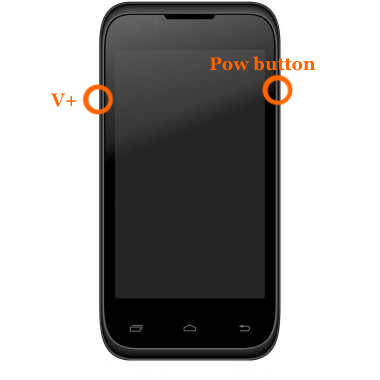
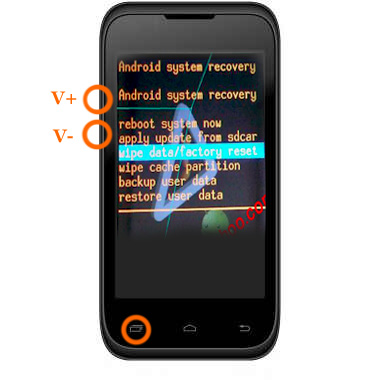
 press and hold "V+ and power button" together some second.After some second you will see factory mood on your phone screen as like as step-2 picture next select wipe data / factory reset using v+ or v- button and press ok button.Your phone will be restart.


undefined
Step-2 

undefined


Method number 2 #
  1. At first Switch off your phone.
  2. Press and hold volume up + call button and + power button, while still holding before showing android logo then wait some time.After that 
  3. If you see recovery menu / factory menu  then go to step 5
  4. If you dont see   recovery menu / factory menu  then press home button or left key or call button then you will see.When you see recovery menu / factory menu  then go to step 5
  5.  Select Wipe data/Factory and press ok button
  6. Then select delete  all data and press ok button then your phone will be restart and take several minute. 
Method number 3 # 
 When the phone is powered off, press and hold the Volume Up button and the Volume Down button keys both at the same time, then press and hold the Power key until a test screen that shows some available options appears, usually takes about 15-20 seconds. When that screen pops up you can let go of the keys.
Press the Volume Down key to navigate down through the options until it highlights FACTORY RESET then press thePower key to select it.
Method number 4 # 
Power the phone off all the way, press and hold the Volume Down button and press than release the Power button, still holding the volume down button for about 10-15 seconds. When you see some additional options pop up on the screen you can let go of the keys.
Press the Volume Down button select the options until it highlights the reset option; it usually says FACTORY RESET, then press the Power key to make the selection.
Method number 5 #


Method number 6 #


Method number 7#

Method number 8 #


Method number 9 #


I hope Work one method of the all above  method.apply all method one by one. 


Read More..